
A print-ready file is a design built to exact specifications so it can be printed without changes, delays, or surprises. The best practices come down to a handful of technical choices: working in CMYK color, using high-resolution images, adding bleed, keeping text inside a safe margin, and exporting a press-ready PDF with fonts embedded. Get these right and your project prints cleanly the first time. Get them wrong and you risk faded colors, blurry images, white edges, or a missed deadline.
At Replica Printing Services, we have prepared and printed files for San Diego and Poway businesses since 2001, and we see the same avoidable issues again and again. These print-ready file setup tips cover everything you need to send files our presses will love — whether you are designing a flyer, a brochure, a banner, or a full booklet.
You do not need to be a prepress expert. You just need to understand a few rules that separate a file that prints beautifully from one that comes back with problems. Here is what matters most.
A Print-Ready File Is Built Correctly Before It Reaches the Press
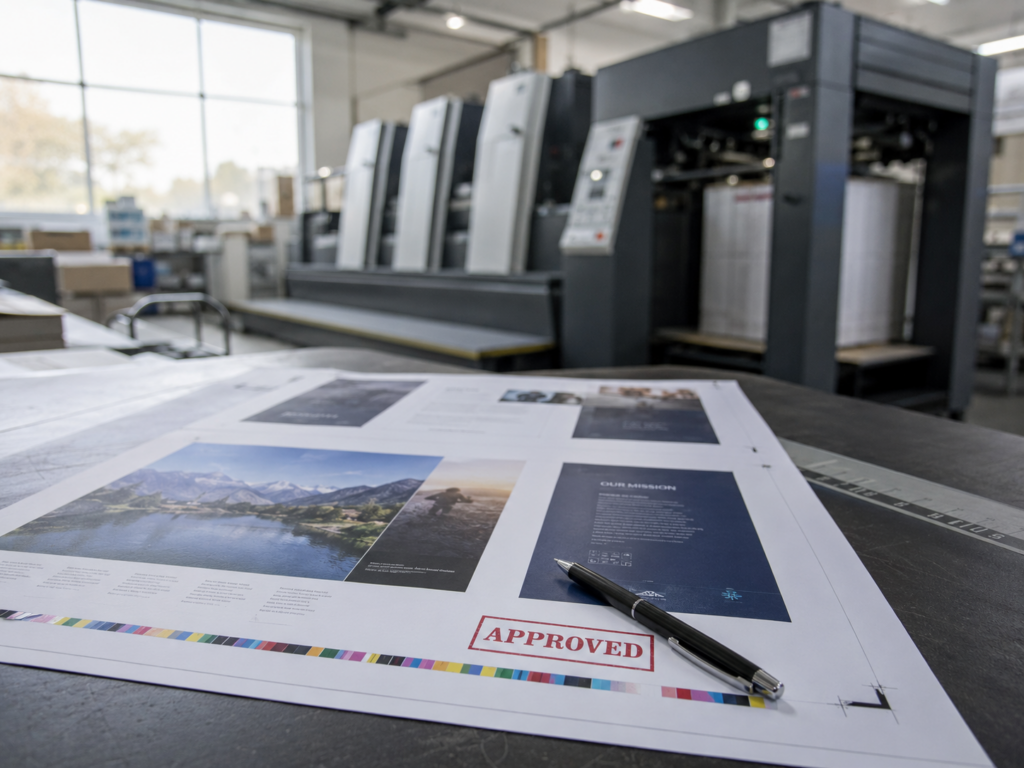
A print-ready file is one that needs no further adjustment to print correctly at the right size, color, and quality. The goal is simple: what you see on your screen should match what comes off the press. Before diving into each setting, here is a quick-reference cheat sheet you can keep handy while you design:
| Setting | Recommended Spec |
|---|---|
| Color mode | CMYK (convert from RGB before exporting) |
| Image resolution | 300 DPI at final print size |
| Bleed | 0.125″ (1/8 inch) on all sides |
| Safe margin | Keep key text/logos 0.125″–0.25″ inside the trim |
| File format | Press-ready PDF (PDF/X-1a) |
| Fonts | Embedded or converted to outlines |
| Document scale | Built at 100% of final size |
Design in CMYK to Keep Your Colors Accurate
Always design and export print files in CMYK, not RGB. Screens display color using red, green, and blue light (RGB), while presses reproduce color using cyan, magenta, yellow, and black ink (CMYK). If you send an RGB file, it gets converted to CMYK during printing — and bright, screen-glowing colors can shift noticeably, often coming out duller than expected.
A few color guidelines to keep your results predictable:
- Convert to CMYK early so you can see and adjust how colors will actually print, rather than being surprised later.
- Use Pantone (spot) colors when a brand color must be exact across every print — especially for logos.
- Use rich black for large solid areas (a mix of CMYK, not just black ink) so big black blocks look deep rather than washed out.
- Use 100% K black for small text, which keeps fine type crisp and avoids registration blur.
What Resolution Do Print Files Need?
Print files need a resolution of 300 DPI (dots per inch) at their final size. This is the standard that produces sharp, professional images. Web images are usually only 72 DPI, which looks fine on a screen but turns pixelated and blurry once printed — one of the most common reasons a file is not print-ready.
To stay safe with resolution:
- Check that every placed image is 300 DPI at the size it appears in the layout, not just at its original size.
- Never enlarge a low-resolution image to fit a larger space — it will lose quality.
- Use vector graphics (logos, icons, line art) wherever possible, since they stay crisp at any size.
Bleed and Safe Margins Prevent Costly Trimming Errors
Bleed and safe margins protect your design from the small shifts that happen when paper is cut. Commercial cutting is precise but not perfect, so these buffers keep your finished piece looking clean instead of revealing thin white edges or slicing off important text.
Bleed
Bleed is extra background that extends 0.125 inch (1/8″) beyond the trim line on every side. Any color, image, or background that runs to the edge of your design must extend into the bleed area. Without it, even a tiny cutting variation can leave an unwanted white sliver along the edge.
Safe Margin
The safe margin (or safety zone) is the opposite buffer: keep all important text, logos, and key elements at least 0.125 to 0.25 inch inside the trim line. This ensures nothing critical gets trimmed off if the cut shifts slightly. Together, bleed and safe margins give your design a reliable cushion on both sides of the trim.
Export as a Press-Ready PDF with Fonts Embedded
A press-ready PDF is the most reliable format for sending files to a commercial printer. Saving as a high-quality PDF (ideally the PDF/X-1a standard) locks in your layout, colors, and images so nothing shifts between your computer and the press. It also bundles everything into a single, portable file.
Before you export, run through this short checklist:
- Embed or outline your fonts so the printer’s system does not substitute a different typeface.
- Embed or package all linked images so nothing prints as a low-resolution placeholder or goes missing.
- Include bleed and crop marks in the export settings so the printer knows exactly where to trim.
- Flatten transparency if your software warns about it, to avoid unexpected rendering issues.
- Confirm the document size matches the final printed dimensions at 100% scale.
How Do You Avoid the Most Common Print File Mistakes?
Most print problems trace back to a short list of avoidable mistakes. Knowing them in advance saves time, reprints, and frustration. The issues we see most often are:
- RGB color left unconverted, causing colors to shift when printed.
- Low-resolution images pulled from the web that print blurry.
- No bleed, leaving white edges after trimming.
- Text too close to the edge that gets cut off during finishing.
- Missing or unembedded fonts, which cause type to reflow or change.
- Wrong final dimensions, such as a file built at the wrong scale.
The simplest safeguard is to request a proof before the full run. A printed or digital proof lets you catch any of these issues while they are still easy and inexpensive to fix.
Frequently Asked Questions About Print-Ready Files
What file format is best for printing?
A high-quality, press-ready PDF is the best format for commercial printing, ideally saved to the PDF/X-1a standard. It preserves your layout, fonts, colors, and images in one portable file. Vector formats are also excellent for logos and line art because they stay sharp at any size.
Why do my colors look different when printed?
Colors usually shift because the file was designed in RGB, the color mode screens use, and then converted to CMYK for printing. Bright, glowing on-screen colors often print duller after this conversion. Designing in CMYK from the start lets you preview and adjust how colors will actually appear in print.
What is bleed and why does my file need it?
Bleed is extra background that extends 0.125 inch beyond the trim edge on all sides. It exists because commercial cutting can vary slightly, and bleed prevents thin white lines from appearing along the edges. Any design element that touches the edge of the page should extend into the bleed area.
What resolution should images be for printing?
Images should be 300 DPI at their final printed size for sharp, professional results. Web images are typically only 72 DPI and will look pixelated when printed. Vector graphics are the exception, since they remain crisp at any resolution or size.
Can the printer fix my file if it is not print-ready?
Many commercial printers, including teams with in-house graphic design services, can correct file issues before printing. Sending a properly prepared file is still faster and more predictable. If you are unsure, ask your printer to review the file and provide a proof before the full run.
Send Your Files With Confidence
A well-prepared file is the difference between a project that prints perfectly the first time and one that comes back with problems. Working in CMYK, using 300 DPI images, adding bleed, respecting safe margins, and exporting a press-ready PDF cover the vast majority of what makes a file truly print-ready. A few minutes of preparation saves hours of revisions down the line.
If you would rather not handle the technical details alone, the team at Replica Printing Services can review your file, flag any issues, and even handle the design through our graphic design services — then send a free proof so you know it is right before printing. Send us your files with confidence, and we will help make sure they print exactly as you imagined.